 PDF Combiner · iPhone · iPad · Mac
Merge, split & compress PDFs
Files never leave your device
Combine PDFs and photos into one file, split out pages, shrink oversized documents, scan and sign — all in one app for iPhone, iPad and Mac. Processing runs on your device, so your documents stay private.

See it in action
Designed to feel effortless.
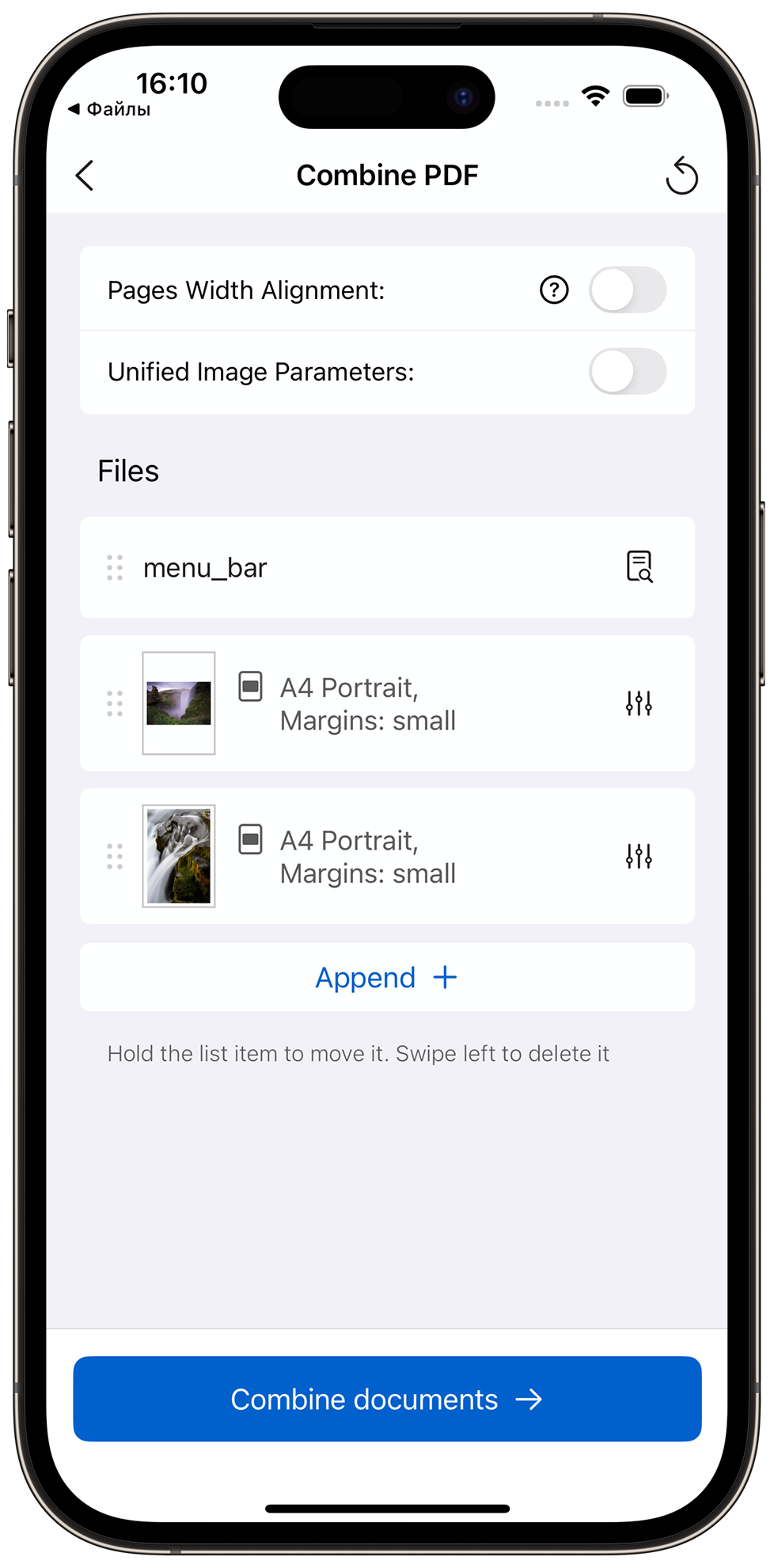
Combine in one tap
Merge PDFs and images into one. Unify page sizes instantly.
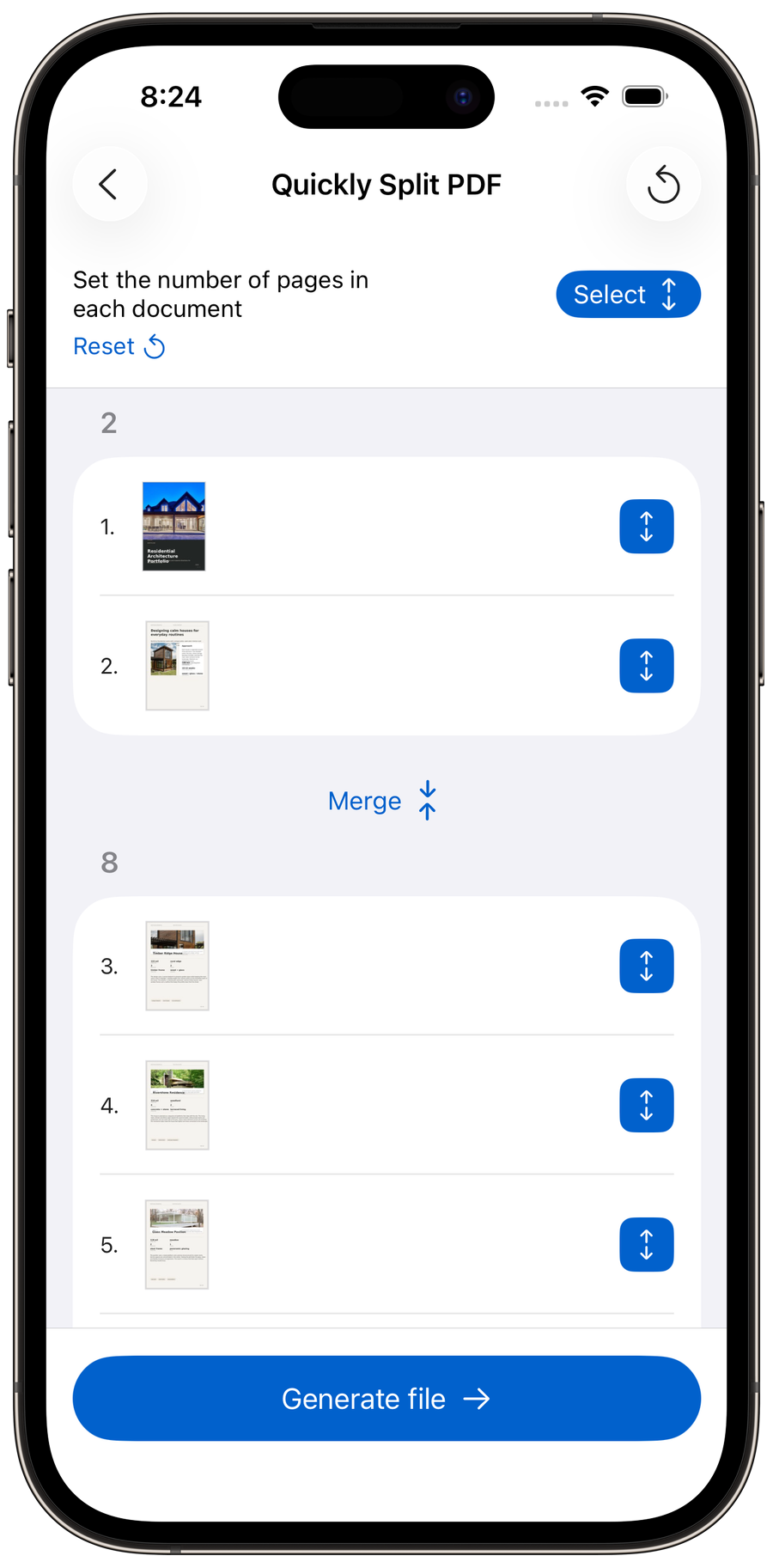
Split in seconds
Set pages per document and split a PDF into clean parts.
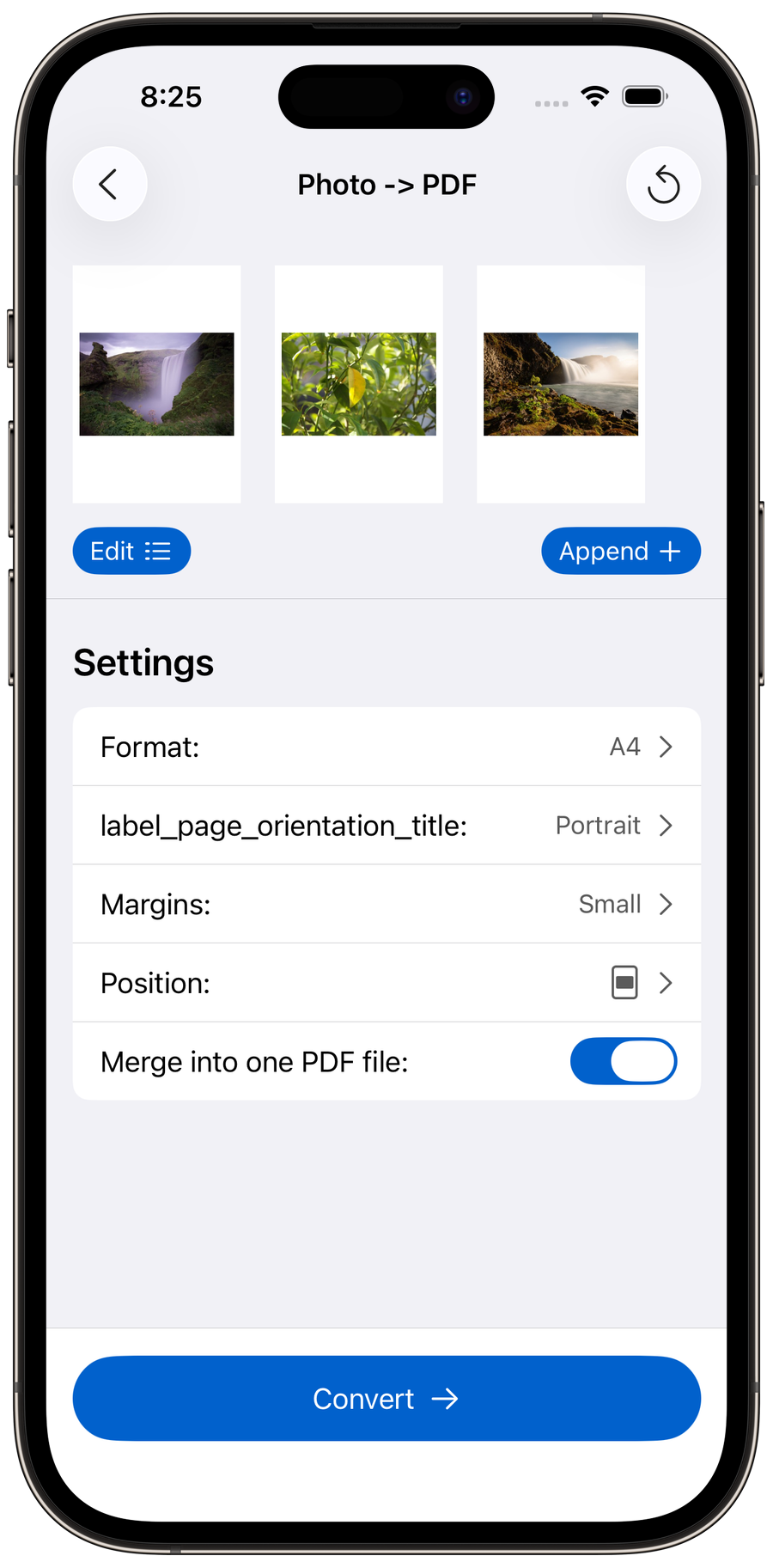
Photos to PDF
Turn images into a PDF — pick format, margins and layout.
What you can do
One app for the whole PDF job
Combine, split, compress and scan — without uploading your documents to a website.
Combine PDFs and photos into one document
Merge multiple PDF files into one — or mix PDFs with JPG, PNG and HEIC photos in the same document. Add files from the Files app, your photo library or the camera, drag pages into order, and save. Merging happens on your device, so it works the same on iPhone, iPad and Mac, even with no internet connection.
Split a PDF into separate pages or files
Split a large PDF into individual pages or several smaller files, or extract just the pages you need as a new document. Choose how many pages go into each file and PDF Combiner does the rest — the original document stays untouched.
Compress a PDF that's too large to email
Reduce PDF file size without uploading the document to a website — compression runs entirely on your iPhone, iPad or Mac, even in airplane mode. Merge several files first, then compress the result to fit email or upload limits. Compress PDF is part of Pro.
Scan paper straight to PDF
Capture documents with your camera — edges are detected automatically and pages are saved as a clean PDF you can then merge, split, compress, sign or share. Built-in text recognition (OCR) makes scans and images searchable.
Everything in one app
From scan to signature — all in one app.
Office to PDF is the only tool that needs an internet connection — the conversion runs on a server and files are not stored after the conversion is complete. Every other tool works fully on your device, offline.
App Store Rating
Based on 2,300+ ratings across all regions.
Our company doesn't allow free websites to combine PDF files. This app lets me do it without breaking the company's security rules.
Avoid this app if you want the typical free app: ads, nag screens, lousy privacy policy. This app has none of those and is a joy to use.
Works great. Splits very large PDFs fast.
Great app, everything works fast, and most importantly it's very lightweight. Clean and intuitive menu.
One app. All your devices.
Works on iPhone, iPad & Mac.
The same tools across all your Apple devices.

Plans
Start free. Go further with Pro.
Get a feel for the everyday tools, then unlock the full app with Pro — available as a subscription or a one-time purchase.
Free
The everyday tools, with a daily usage limit.
- All core tools included
- Up to 3 documents per day
- Explore Pro tools without limits
Pro
Everything in Free, plus advanced tools.
- No daily limits
- Pro tools — including Compress PDF
- Advanced features to speed up your work
Pro is managed and purchased directly inside the app.

Frequently asked questions
How do I combine PDFs into one on iPhone, iPad or Mac?
How do I split a PDF into separate pages or smaller files?
How do I compress a PDF on iPhone, iPad or Mac?
Can I compress a PDF without uploading it to a website?
What can I do when a PDF is too large to email?
Can I reorder, rotate or delete pages in a PDF?
How do I scan documents to PDF?
Do my files stay private, and does it work offline?
What languages does the app support?
No uploads. No waiting.
A fast, private PDF toolkit that works offline, wherever you are.